
Best Practices for creating Invoices & Credit Notes in QuickBooks
To ensure Galvix calculates sales tax accurately, it's important to follow certain invoicing & credit notes creation practices in QuickBooks. This guide highlights the essential steps for creating an invoice or credit note, as well as key considerations to avoid.
Here's what is covered in this Guide -
- Provide Complete & Accurate Customer Addresses
- Select Correct Invoice Date
- Verify Setup Completion
- Creating an Invoice
- Sales Tax Handling by Galvix in QBO
- Editing an Invoice
- Creating a Credit Note
- Next Steps
Provide Complete & Accurate Customer Addresses
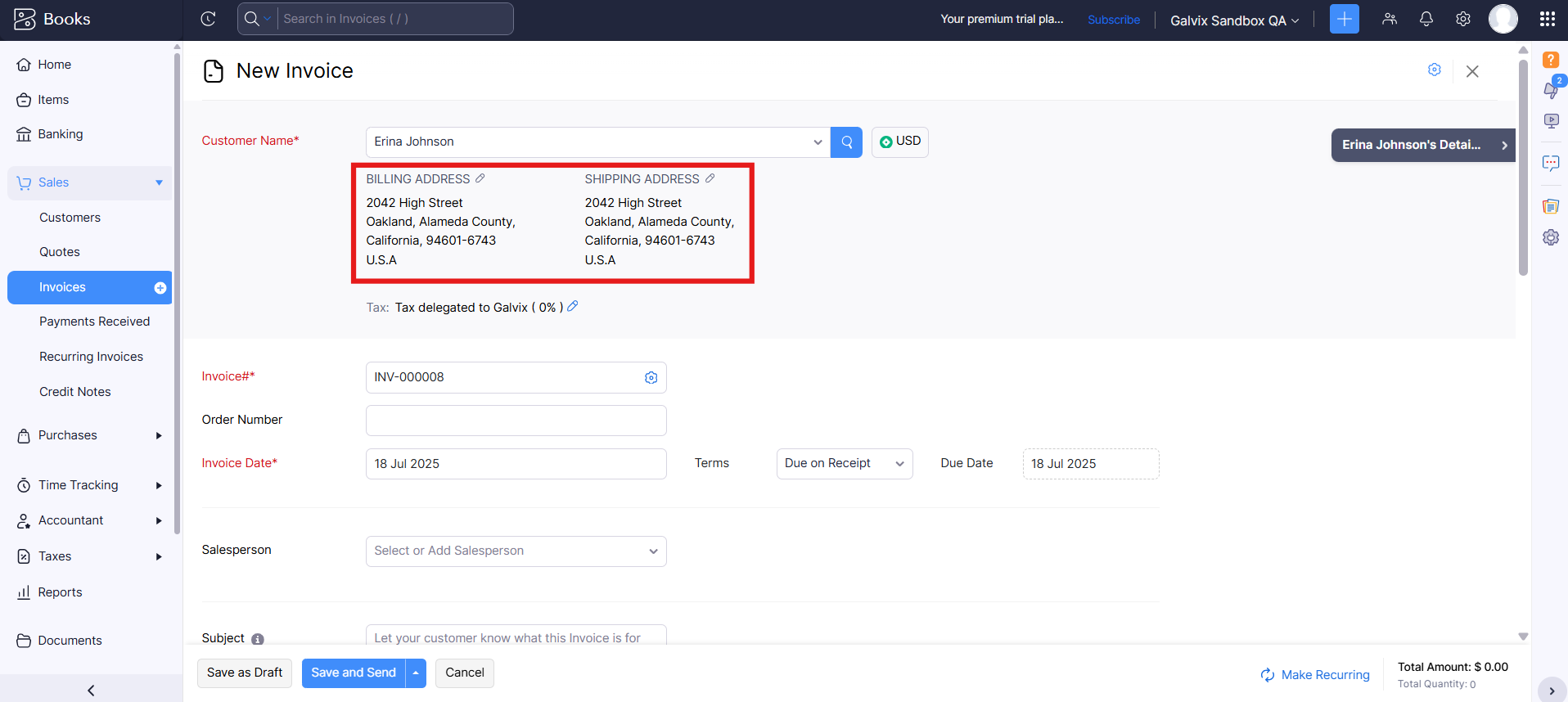
Galvix relies on accurate shipping addresses from the transaction to determine the correct tax jurisdiction, as tax rates vary by zip code, city, and state. If a shipping address is not available, the billing address will be used for tax calculations.
When creating an invoice in QuickBooks, the address fields are pre-populated based on the values saved in the customer record. However, if you manually update these fields to a different address. Galvix will always use the address specified on the invoice or credit note, not the customer record, for tax calculations.
For precise tax calculations, it is recommended to include the following address details in your invoice or credit note :
- Full street address
- City, state, county, and country
-
9-digit zip code (e.g., 12345-6789) for enhanced accuracy
Select Correct Invoice Date
Galvix uses the invoice date to determine which tax return period a transaction belongs to. To avoid exclusion from return calculations:
- Choose an invoice date in the current or future month. Past-dated invoices (e.g., from a previous month) may get excluded if a return has already been filed by Galvix for that period.
Verify Setup Completion
Before creating invoices, confirm that your QuickBooks account is properly configured for Galvix:
- Integration: Ensure QuickBooks is successfully connected to Galvix (see our Integration Guide).
- Configuration: Complete all QuickBooks configuration steps, including customer taxability settings (see our QuickBooks Configuration Guide).
Creating an Invoice
Follow this recommended workflow to create invoices in QuickBooks, ensuring accurate tax calculations by Galvix.
Steps to Create an Invoice:
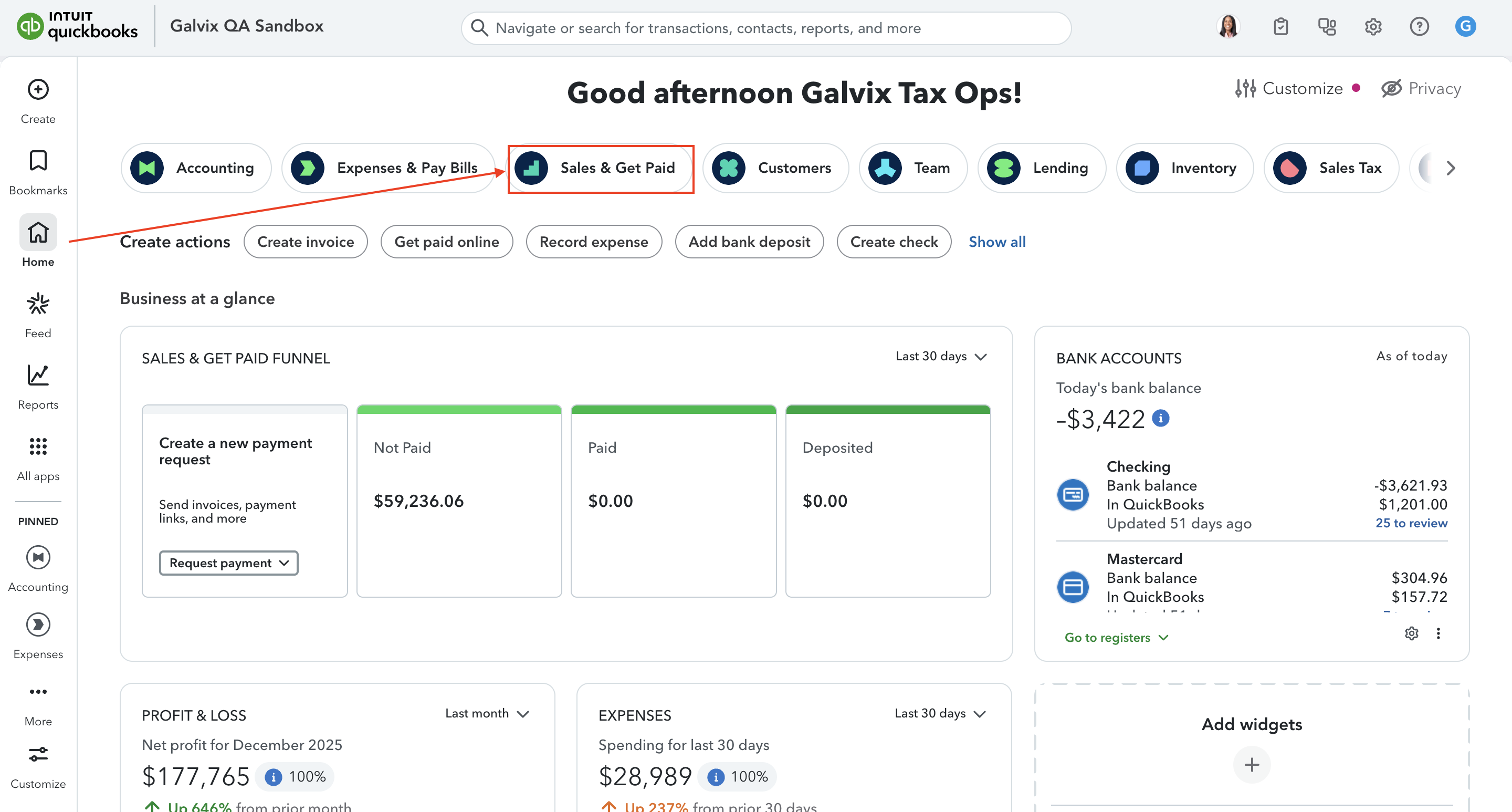
- In QuickBooks , from Home, go to Sales & Get Paid.
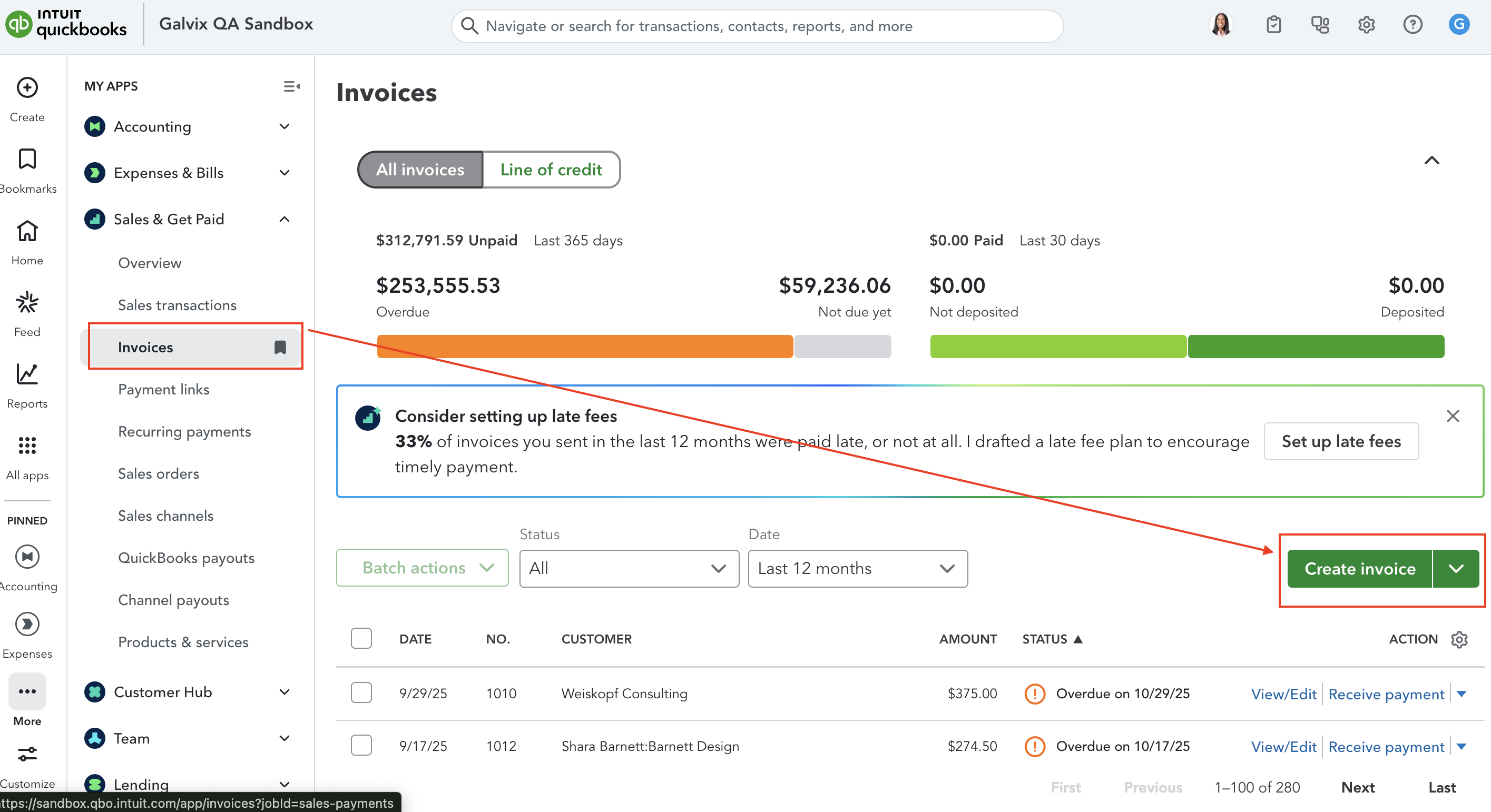
- Click on Invoices > Create Invoice to create a new invoice.
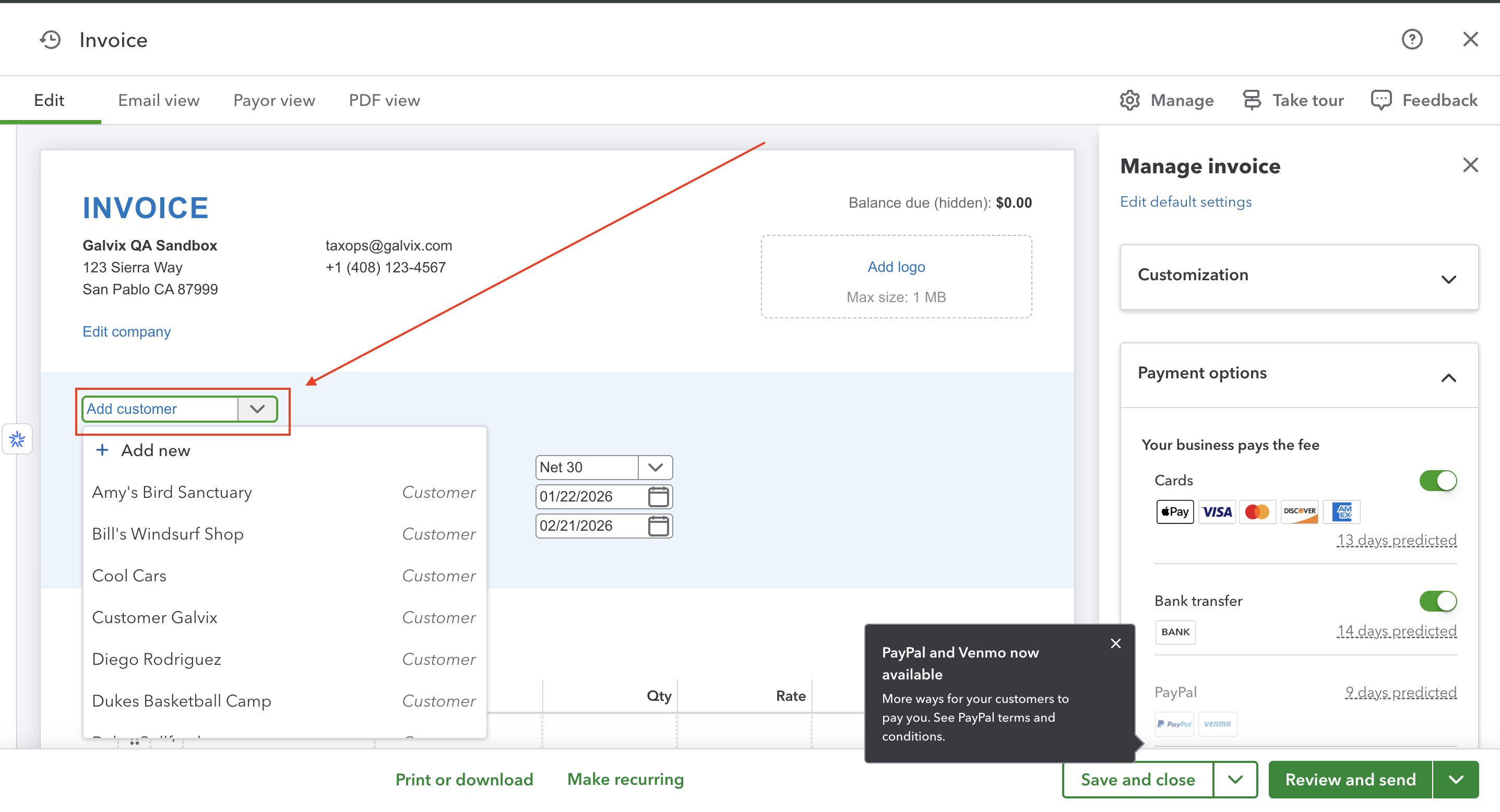
- Fill in the details as needed to create this invoice.
- Under Customer, select an existing customer or add a new one.
- Set the Invoice Date.
- In the Product/Service Table, select an existing product/service or add a new one.
- Add Shipping 'as a line item' if applicable.
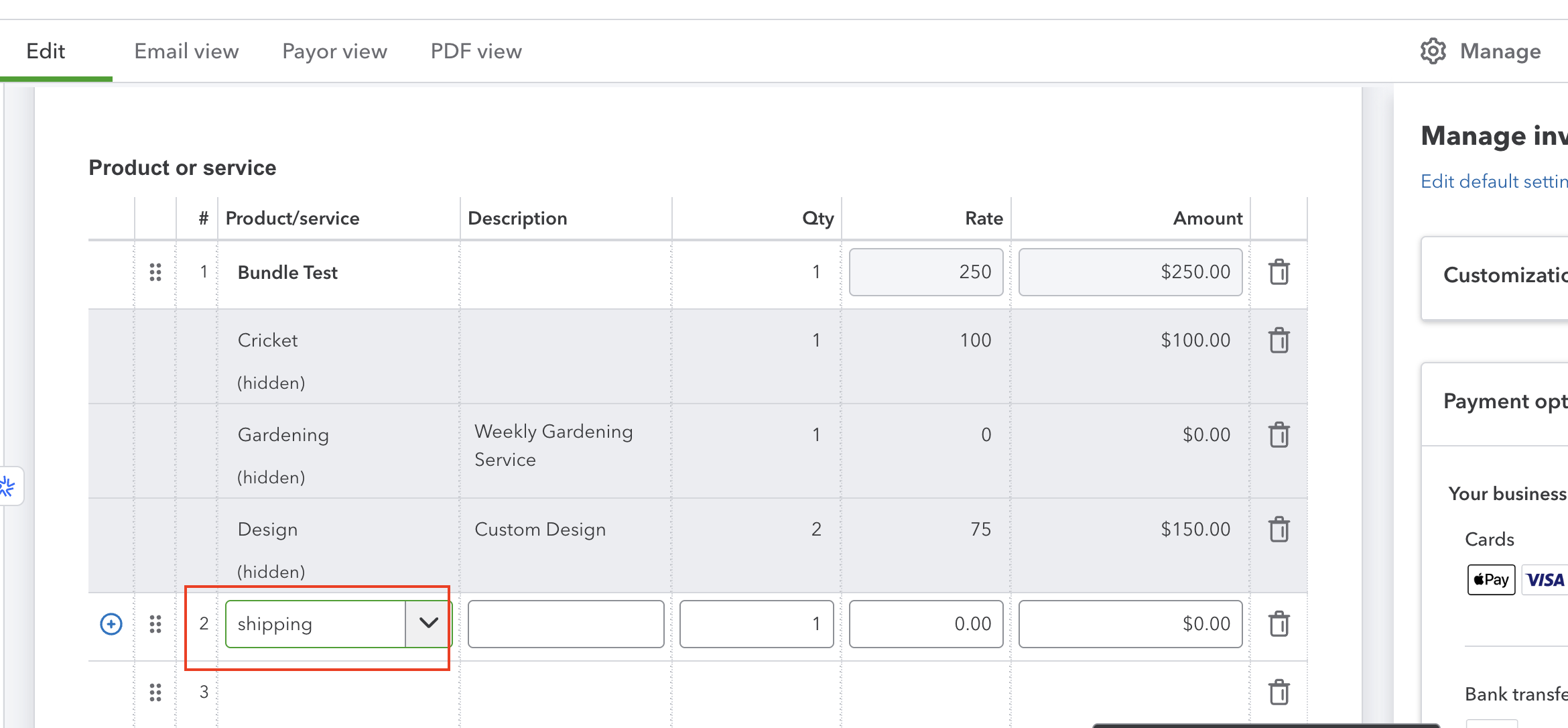
Ensure your products and shipping charges are assigned to the correct tax categories in Galvix! Follow this guide to verify and set them up accurately.
- Click Save and Close to allow Galvix to calculate taxes.
Sales Tax Handling by Galvix in QBO
When you use Galvix as the tax determination engine for your invoices, it is important to first disable the QuickBooks Online (QBO) tax engine. This prevents conflicts between the two systems and avoids tax calculation errors.
(To learn how to disable the QBO tax engine, refer to our QBO Configuration Help Doc)
Where to find the sales tax amount in your Invoices?
Galvix automatically creates the following items in QuickBooks:
⚠️ These items are created only once and should not be modified.
Items Created Automatically by Galvix:
When Galvix is connected to QuickBooks, it automatically creates specific accounting items required to calculate and track sales tax accurately. These items ensure proper tax calculation, reporting, and compliance and no manual setup is required.
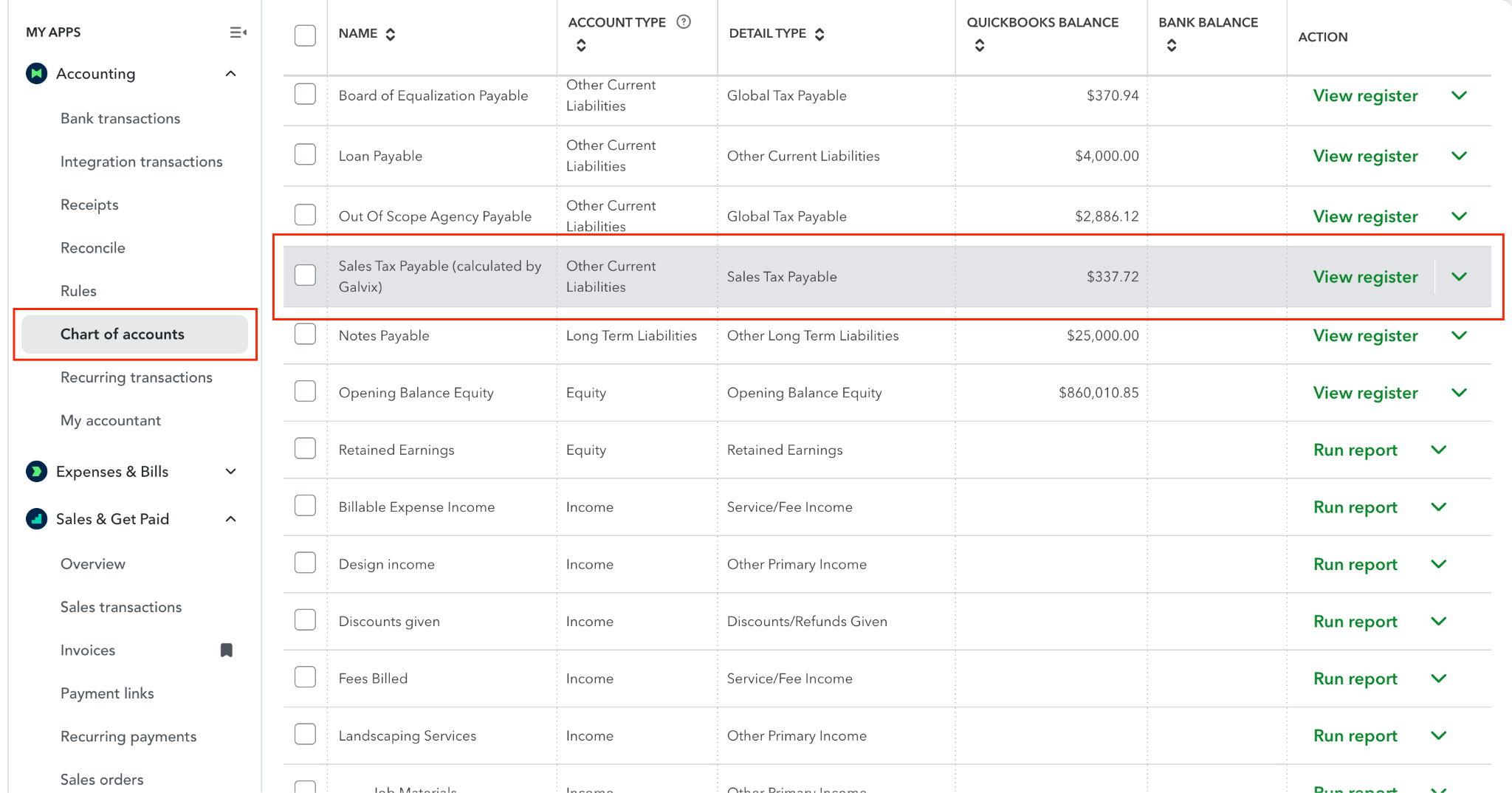
1. Sales Tax Payable Account
- Account Name: Sales Tax Payable (calculated by Galvix)
- Account Type: Other Current Liabilities
- Detail Type: Sales Tax Payable
- Purpose: Tracks all sales tax amounts calculated by Galvix.
Where to Find It
Accounting → Chart of Accounts
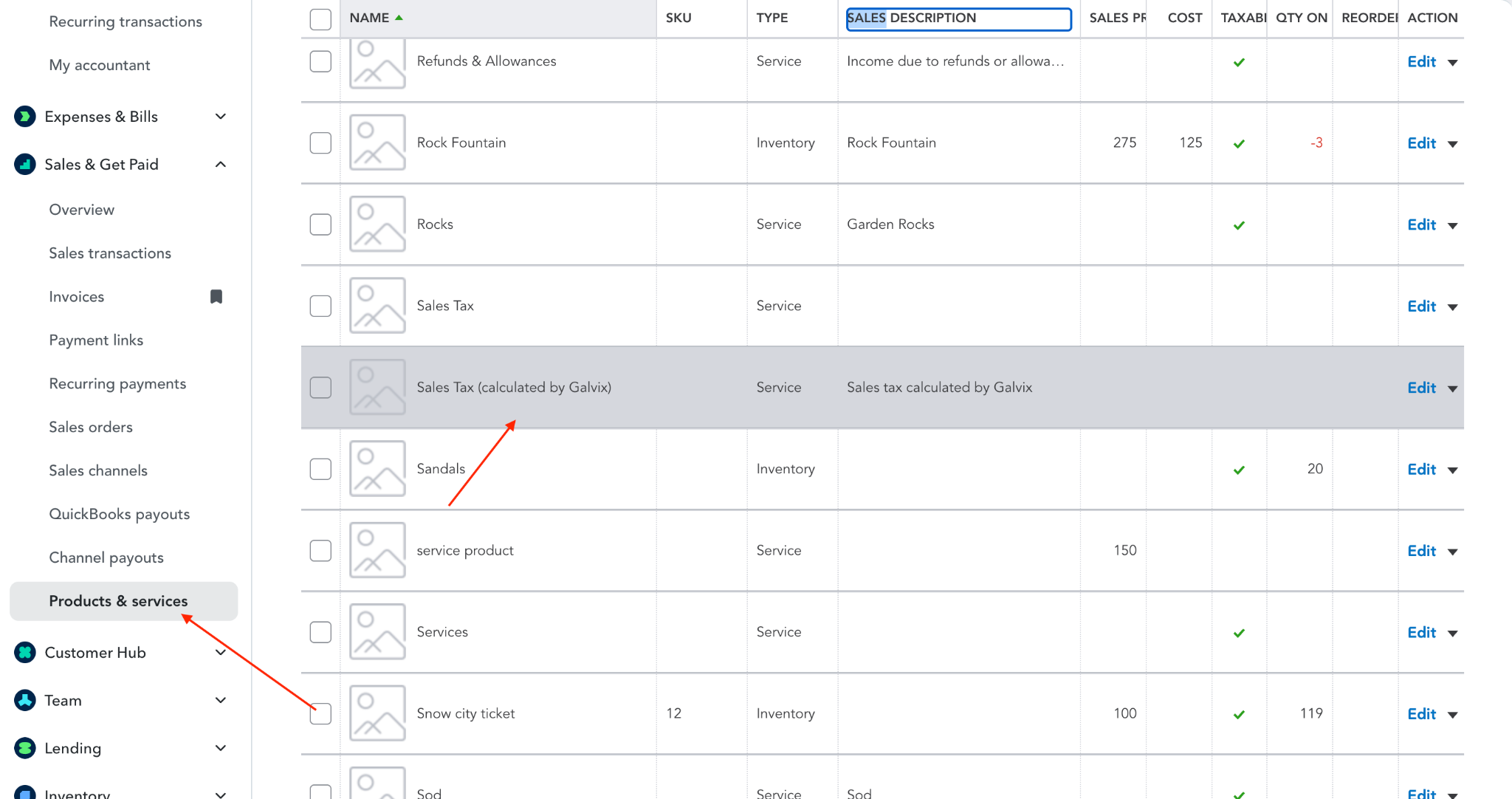
2. Sales Tax Service Item
- Item Name: Sales Tax (calculated by Galvix)
- Type: Service
- Income Account: Sales Tax Payable (calculated by Galvix)
- Sales Price: 0.00
- Taxable: Yes
- Description: Sales tax calculated by Galvix
Important to Note:
- This item is used only for tax calculation.
- It is automatically added to invoices by Galvix.
- Do not manually add, edit, or delete this item.
How Galvix Calculates Sales Tax
Galvix reviews each line item on the invoice
- If one or more items are taxable in Galvix:
- Determines the correct sales tax based on location and applicable tax rules
- Automatically adds a new line item to the invoice: Sales Tax (calculated by Galvix)
- The tax amount:
- Represents total tax for all taxable items
- Posts to the Sales Tax Payable account
- Appears even if the amount is $0.00
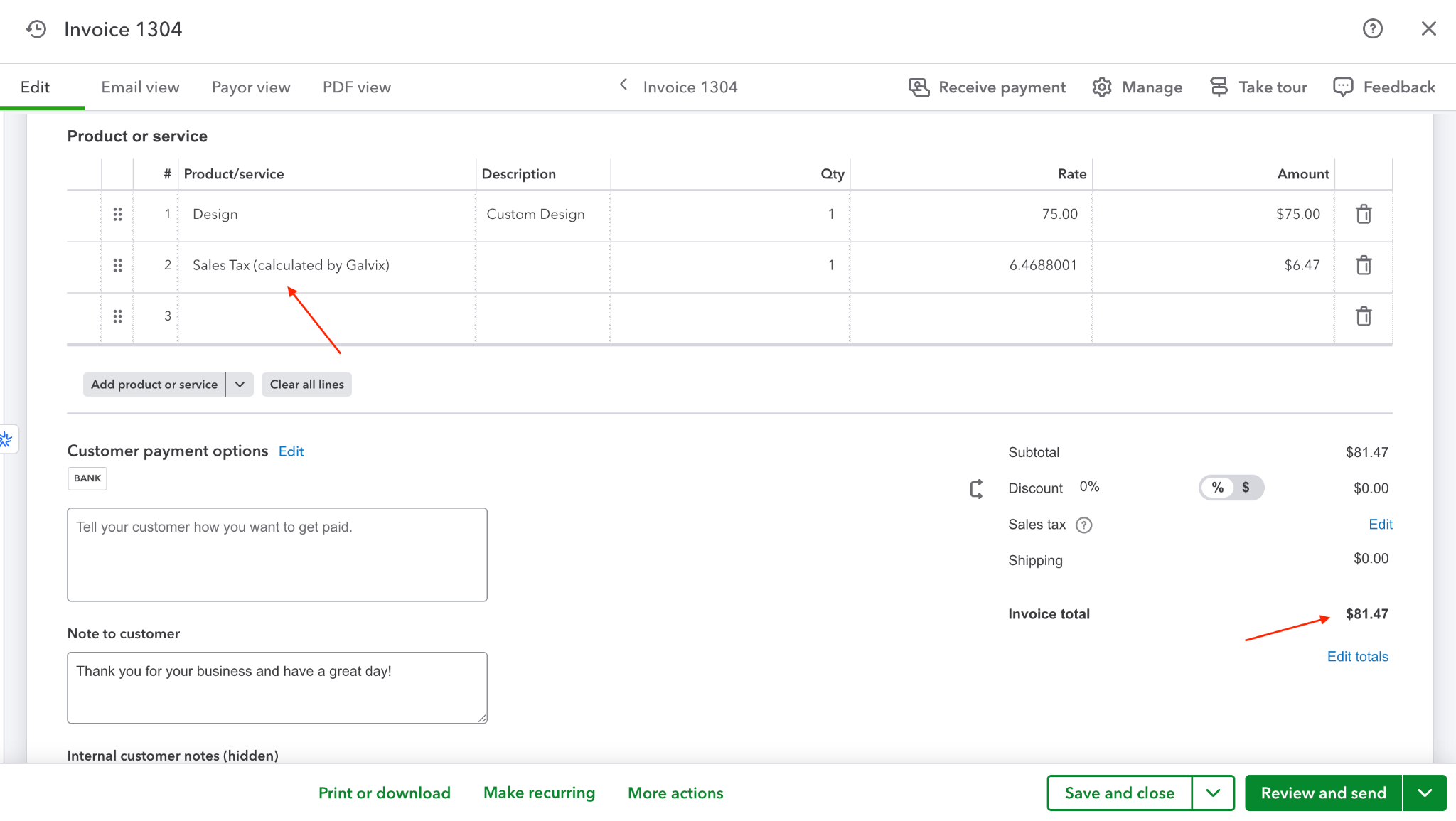
No Action is Required
All sales tax calculations and postings are handled automatically by Galvix. No manual adjustments are needed. After reviewing the invoice, you can proceed to print, send, or share it with your customer.
Editing an Invoice
To ensure Galvix accurately updates sales tax calculations when editing an invoice in QuickBooks, follow the recommended workflow below. This guide ensures seamless tax updates and compliance.
Steps to Edit an Invoice:
- In QuickBooks , go to Sales > Invoices.
- Open the existing invoice you want to edit.
- Make necessary changes (e.g., update customer, items, shipping charges, or discounts).
- Click Save and Close to allow Galvix to calculate taxes.
- Wait for a few seconds for Galvix to update taxes to the draft invoice. Refresh the preview page to view the updated tax amount.
- Review the taxes, and you are ready to print, send, or share the invoice with your customer.
Creating a Credit Note
Follow this recommended workflow to create credit notes in QuickBooks, ensuring accurate tax calculations by Galvix.
Steps to Create a Credit Note:
- In QuickBooks, go to Sales > Invoices.
- Open the existing invoice against which you want to create a credit memo
- Click on More Actions > Create a credit memo
- Select the Product/Service against which credit memo needs to be created
- Click Save to allow Galvix to calculate taxes.
- Wait for approximately a minute for Galvix to add taxes to the draft credit note. Refresh the preview page to view the updated tax amount.
- Review the credit memo and you are ready to print, send, or share the credit note with your customer.
Next Steps
Now that your Galvix & QuickBooks integration is complete, you may explore our QuickBooks FAQ guide.